How to Check Hoka Color and Size Mismatches on fashionreps
Insight
Jonas ReinhardtIntroduction When a Hoka listing on fashionreps shows a scenario like "the title says one color, the options display another," or the size information differs across sections, don't rush to place an order, pay, or assume it's a product quality issue. This situation first indicates that the page information needs to be re-verified, potentially involving discrepancies among the product card, detail fields, images, option switching, cache, or redirect links. This guide
Jonas Reinhardt is Editor-in-Chief of the Kakobuy Yupoo Review Desk, writing agent comparison tables and leading retests. The work covers shopping-agent operations, parcel forwarding and QC photo standards, with Jonas signing off every hands-on score. Reviews are checked for order dates, QC photo notes, warehouse measurements and shipping-line timings, connecting the comparison tables with the records behind their scores. Each month, two reviews are selected at random and audited against original photographs and receipts, making publication approval and recurring checks of the supporting material part of the editorial work.
Introduction
When a Hoka listing on fashionreps shows a scenario like "the title says one color, the options display another," or the size information differs across sections, don't rush to place an order, pay, or assume it's a product quality issue. This situation first indicates that the page information needs to be re-verified, potentially involving discrepancies among the product card, detail fields, images, option switching, cache, or redirect links.
This guide addresses one specific task: verifying item by item whether the title, color, size, and link on the product page point to the same product information. After completing this, you should be able to decide whether to continue verification, wait for page updates, submit evidence to official channels, or temporarily stop. It is not applicable to judging the authenticity, actual fit, material quality, or final logistics performance of the shoes, because these conclusions cannot be drawn solely from inconsistent page fields.
Scope of Verification
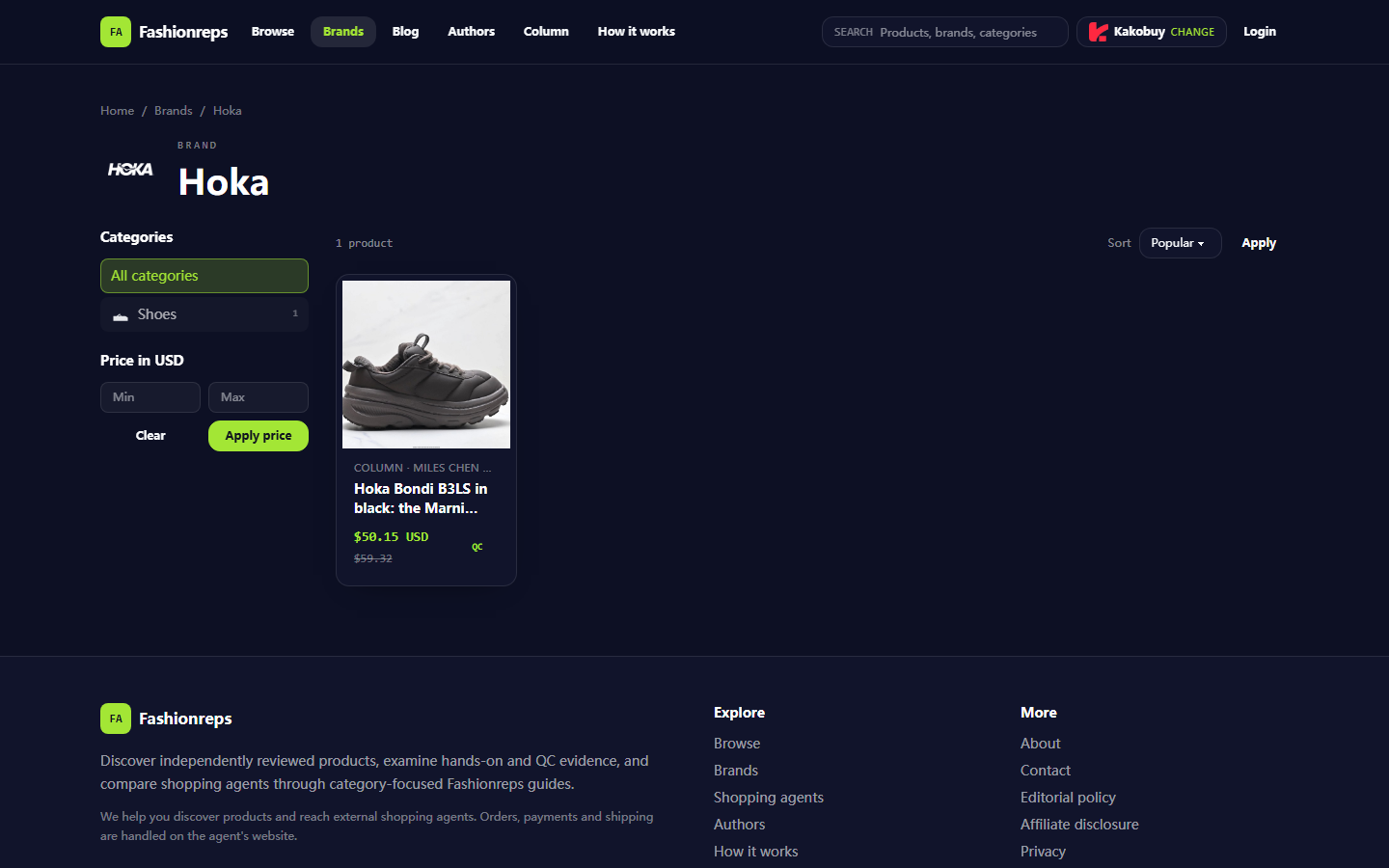
This record is based on page screenshot evidence from the fashion-reps Hoka brand page, with a verification date of October 17, 2026. The screenshot shows that the Hoka brand page has 1 product entry, with a visible product name of Hoka Bondi B3LS in black: the Marni collab's max-cushioned lifestyle sneaker, along with reference price, QC mark, and product card information. The evidence provided does not include the size dropdown, color option values, checkout page, or warehouse order records for a specific product detail page, so it cannot be used to confirm that an actual product has had a size or color mismatch, nor to conclude that the fashionreps platform has malfunctioned.

Figure: Product catalog evidence from the fashion-reps Hoka brand page. This image can only be used to check the page display information and cannot serve as proof of the actual product, size, or quality.
First Save Evidence of the fashionreps Product Page's Title, Color, Size, and Link
First, open the product page in the same browser tab and record the full title currently displayed, the page URL, color field, size field, and a screenshot. The screenshot should include the browser address bar, product title, and the field causing the discrepancy, avoiding capturing only an isolated option.
When recording, don't just write "black" or "size 42"; keep the original page text. For example, save separately:
- The full text of the product title, including model, collaboration, or style suffix.
- The full wording of the color field, including capitalization, slashes, hyphens, and additional descriptions.
- The full wording of the size field, including EU, US, UK size systems.
- The currently selected color and size, and the changes after switching options.
- The actual URL that the product button or buy button points to.
- The time of the screenshot file and the corresponding page URL.
Do not upload order numbers, payment information, full shipping addresses, phone numbers, or passport information in public help requests. If the screenshot contains these, cover them first and keep a copy of the original file for your own comparison. 🔎
How to Compare the Product Card, Detail Fields, and Images Item by Item
Page information should be checked in a fixed order. Do not first guess the color from the product image, and do not directly treat the description in the title as a purchasable option.
| Check Location | What to Record | Handling After Finding Discrepancy |
|---|---|---|
| Product card | Product name, color description, reference price, QC mark, and product entry | Compare word-for-word with detail page title, keep card screenshot |
| Product details | Full title, model, color options, size options | Switch options one by one and record whether the page updates synchronously |
| Product images | Appearance, color scheme, and shoe structure in the image | Only record visible appearance; do not use image as proof of stock or actual item |
| Buy button or external redirect | Address before and after clicking, and page title | Confirm that after redirect it still corresponds to the same product; do not rely solely on button text |
| Option status | Default options, options after switching, and selected state | Close and reopen the page to see if selection is retained |
If the product card says black, but the detail page default option shows another color, first save both original texts separately. At this point, you can only confirm the information is inconsistent, not which one is the correct value. If the image looks like a certain color, but the text field differs, record it as "image and text pending verification" and do not use it to judge the seller's shipping color.
How to Re-verify When Page Updates, Cache, or Option Switching Cause Differences
Step 1: Reload the Same Product Page
After keeping the original screenshot, reload the same URL. Observe whether the title, color, size, and image all change simultaneously. If the discrepancy disappears after reloading, it means the initial page state may have been affected by cache, asynchronous loading, or incomplete rendering of options, but you should still keep the first screenshot and not overwrite the evidence.
Step 2: Switch Colors and Sizes One by One
First, switch only the color without changing the size; then restore the original color and switch only the size. Change only one variable at a time, recording whether the title, image, option value, and buy button all update synchronously. Switching multiple options at once makes it impossible to determine which field triggers the difference.
If after switching colors the title and image update, but the size list does not change, this usually only indicates that the page fields are not updating synchronously. It does not mean the stock actually exists, nor that the warehouse can ship according to the selected color.
Step 3: Repeat Observation in an Incognito Window or Another Device
Open the same URL in an incognito window or another device and compare whether the same discrepancy appears. Do not repeatedly clear browser data before saving evidence, as this may make the initial state difficult to restore.
If the discrepancy occurs on only one device, record the browser, device, and observation time. If the same discrepancy occurs on different devices, the evidence is more suitable for submission to official page maintenance or customer service, but still cannot be used to conclude that the backend inventory or order system is faulty.
Step 4: Confirm the Redirect Chain Does Not Change the Product
After entering the detail page from the product card, check the address bar and page title. After clicking the buy button, if it leads to an external shopping agent or other site, re-verify the product name, color, size, and target address. Product titles on different pages may be shortened or formatted, so you cannot assume they are identical just because the titles are similar.
Do not pay or pass the product link directly to a warehouse purchasing agent without confirming the color and size after redirect. 💳
How to Record Missing Fields, Redirect Anomalies, and Link Status
When encountering the following situations, use accurate and re-verifiable descriptions:
- Color option is empty, but product images still display.
- Size list exists, but no size system is shown.
- After selecting a certain size, the page automatically reverts to the default color.
- Product card opens, but the buy button jumps to an unrelated page.
- The same URL shows different titles on different devices.
- Page indicates the product exists, but detail fields fail to load.
- Product URL redirects and the page after redirect lacks the same model or style information.
- Page returns an error, blank content, or cannot continue loading.
The recording format can be "time + page location + original text + screenshot number." For example: "2026-10-17 14:20, detail page color field shows A, product card shows B, screenshot 02 and screenshot 03." Do not write "platform inventory error" or "seller shipped wrong item" unless there is independent evidence such as order, warehouse inspection, or official reply.
If after link redirect a login, region, proxy, or permission page appears, first record the redirect address and page prompt, and do not repeatedly click the payment button. If the URL contains personal identifying information or temporary authorization parameters, do not publicly copy the full link; cover sensitive parts in public screenshots while retaining the original link for private verification. 🧾
Which Phenomena Only Indicate Information Inconsistency and Cannot Infer Product Quality
Page field inconsistencies only support limited conclusions. None of the following inferences should be directly made:
- Different color text, so the actual item will definitely ship in the wrong color.
- Missing size list, so the product definitely has no stock.
- Image does not match title, so the product is definitely fake or poor quality.
- Reference price changes, so the page is definitely fraudulent.
- QC mark appears, so the product has already passed warehouse inspection.
- Buy button is clickable, so the order will definitely be fulfilled according to the current options after payment.
A more cautious statement is: "The page currently shows different information in two places, and it has not been confirmed which field corresponds to the actual purchasable option." This retains the issue while avoiding expanding a page display problem into a conclusion about quality, inventory, or fulfillment.
What Page and Screenshot Evidence to Submit When Seeking Official Help
When seeking help from fashion-reps official support channels, submit the minimal but sufficient information for verification:
- Product detail page URL and path from the product card.
- Full product title and the original text of displayed color and size.
- Screenshot that shows address bar, title, and the discrepant fields together.
- Screenshots after switching colors or sizes one by one, indicating the switching order.
- The time, time zone, browser, and device type when the discrepancy first appeared.
- Whether it is reproducible after reloading, in an incognito window, or on another device.
- Page title after redirect and non-sensitive page status.
Do not submit full order numbers, payment card numbers, shipping addresses, phone numbers, passports, or other personal data unrelated to troubleshooting. If official channels require order information, provide a redacted order screenshot or the minimal identifying fields allowed.
Your help request should focus on one issue, for example: "Product card shows color A, detail page default option shows color B; after switching color, the title and image do not synchronize. Please confirm which one represents the current purchasable option." Do not mix in unrelated issues such as logistics, refunds, account security, and product quality, as it makes it hard to determine which item the official reply addresses.
Checklist for Continuing Purchase, Waiting for Update, or Pausing After Troubleshooting
Conditions to proceed to the next step:
- Product card, detail fields, option status, and post-redirect product information match.
- Color and size system are clear, and page state is stable after switching.
- Page URL does not redirect to an unrelated product or abnormal blank page.
- You have saved page evidence and confirmed that no personal sensitive information is exposed.
Conditions suitable for waiting for page updates:
- Page only shows brief loading discrepancy, and fields become consistent after reloading.
- Official source has confirmed they are correcting title, color, or size fields but updates are not complete.
- Product can still be accurately identified, but a secondary field is temporarily missing.
Conditions to pause purchase or payment:
- Color or size remains inconsistent across multiple pages and you cannot confirm which option will be passed to the seller or agent.
- Buy button redirects to a product or page whose identity cannot be confirmed.
- Page shows selectable options, but the selection state cannot be saved or reproduced.
- Official support cannot confirm which product the current link corresponds to.
- Page requires submitting unnecessary payment or identity information to continue verification.
The result of this troubleshooting can at most help you confirm whether the page information is consistent; it cannot replace warehouse inspection, order confirmation, or compliant after-sales processes. If before payment you cannot clarify the correspondence of color, size, and redirected product, pausing the operation is usually safer than dealing with a wrong shipment after the fact. ✅